
(Back to How to Join a Google Meet)
(Back to How to...)
If your school Google permissions are interfering with your regular Google email account make sure the following happens
- log out of your school account, then log into your regular Google account. You and your tutor do not have the same type of Google license.
or:
- choose to work in a different browser where you can use your Google account separately from your school account. Make sure you are logged in with your Gmail.
examples: Opera, Microsoft Edge, Chrome
or:
- if you clicked on a Google Meet link much before the meeting starts, there will be no one there to let you in, it may seem like the link is not working. Click here to see how this is supposed to work.
- we can use Miro instead.
- laptops have microphones built in
- desktop computers may need an attached microphone
- The following icon in Google Meet indicates the microphone is on.
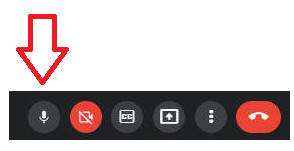
- The following icon in Google Meet indicates the microphone is off or not present.

You can follow these steps:
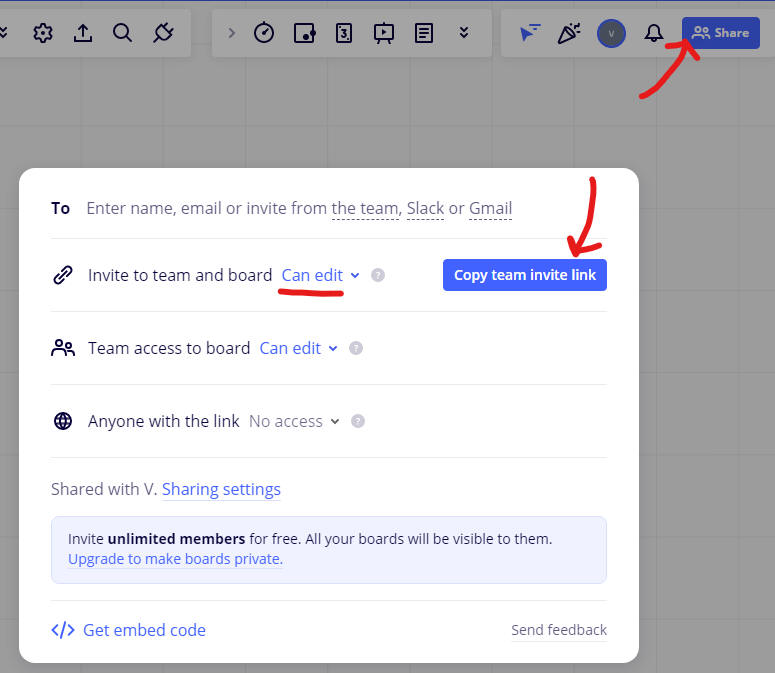
If the microphone is not the problem, and you still have problems with the sound in the Google Tools, then:
- create a free account with Bramble
the signup is quick and easy.
A bramble link will be sent to you which you can join before the meeting starts.
Email your tutor if you have this problem.
If sound is produced via the speakers and the microphone is on at the same time, loud feedback noise can happen.
Use earbuds to prevent this from happening.
Back to How to...