
(Back to How to...)
Create a free account at https://miro.com/.
Click here to choose a short video tutorials:
This board operates inside your browser, you don't need to install anything.
Shortcuts:
Send an invite after you already made a board.
Scroll the canvas Left and Right
Erase some or all the contents of the board
Make a duplicate of your board
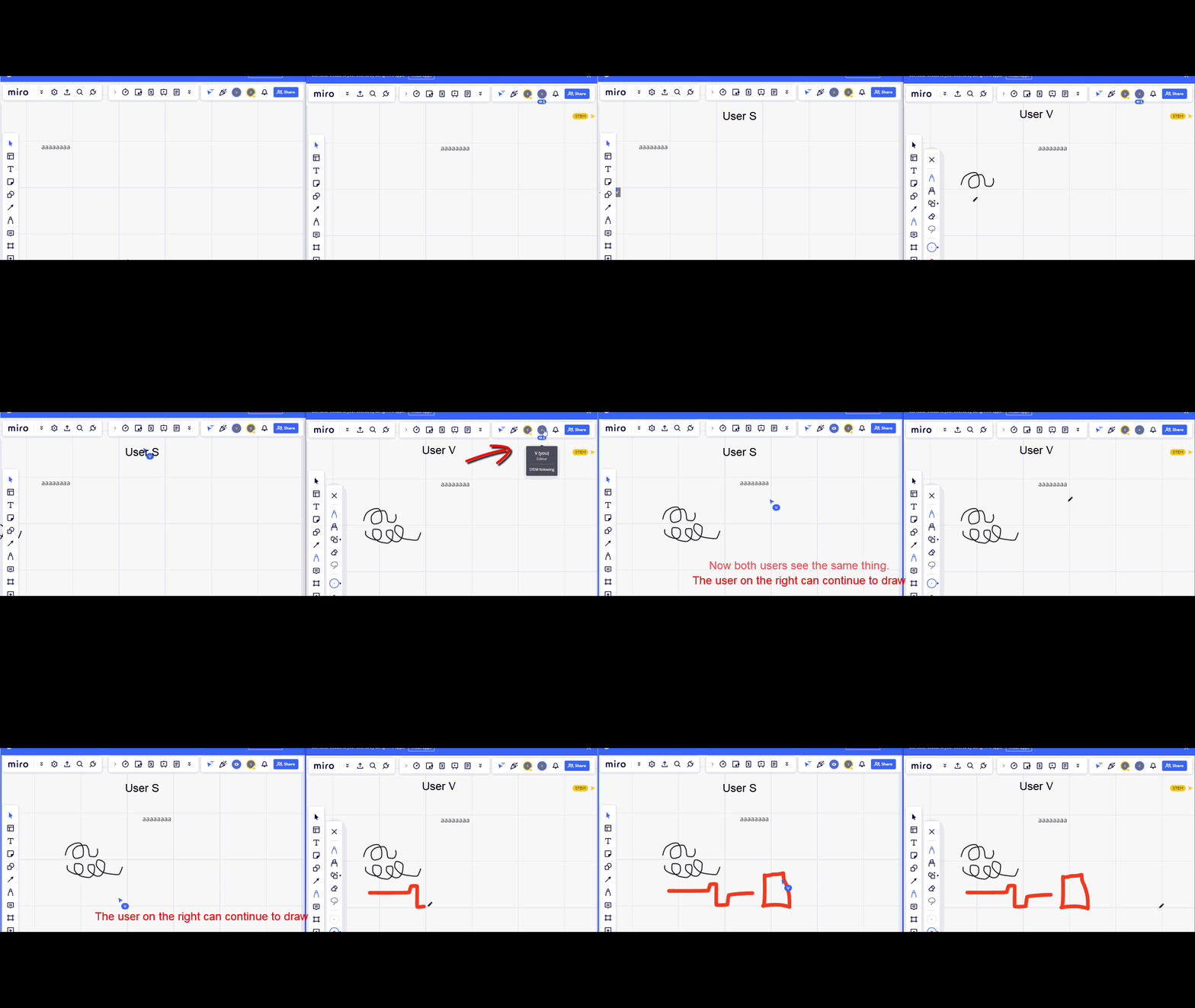
Force other users to see the area you are drawing in
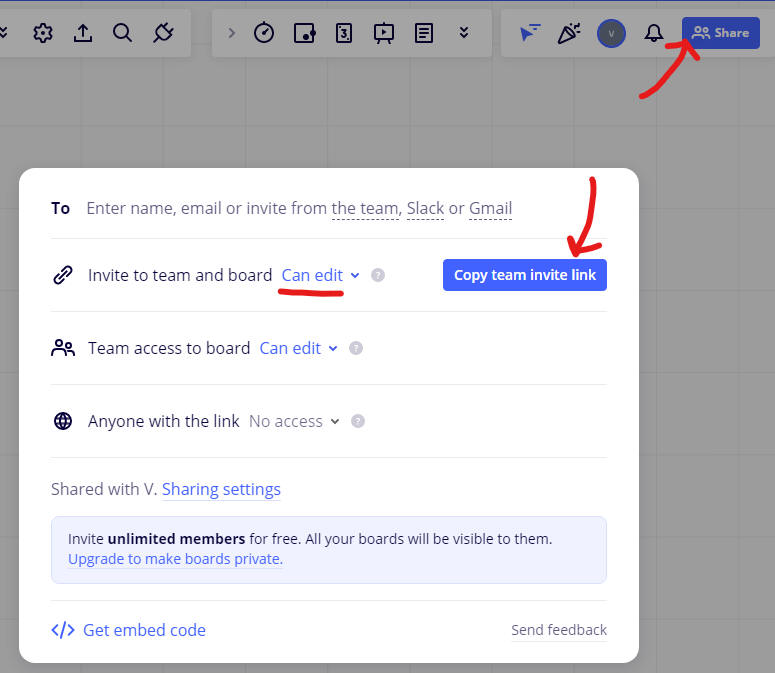
Press the "Share" button.
Press the "Copy team invite link" (make sure "Can edit" is selected).
Paste the link into an email and send the email to the person you want to invite.
Press down the right mouse button while dragging left and right. The canvas moves with this motion.
Use the right mouse button to navigate the area into view. The mouse wheel can help you zoom in/out at the same time.
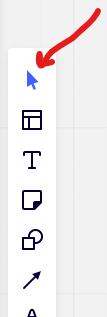
Select the blue arrow in the side menu.
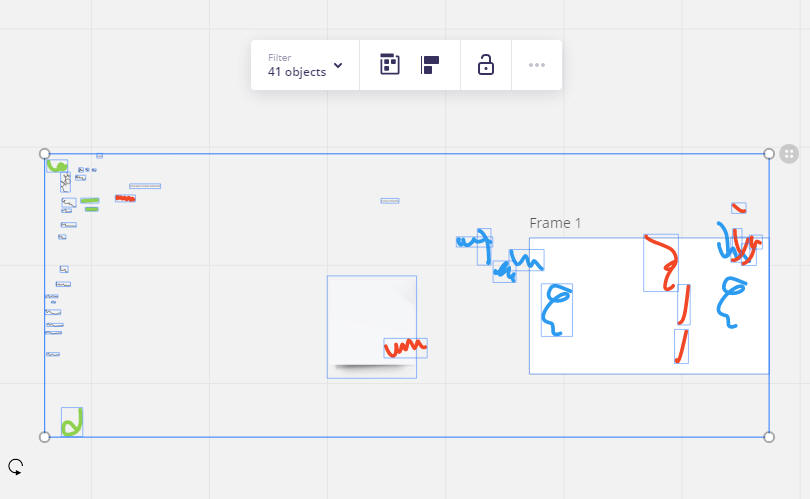
Select the area to erase with the mouse by holding down the left mouse button and dragging to extended the area as customary in selections in other apps.
The following interface appears.
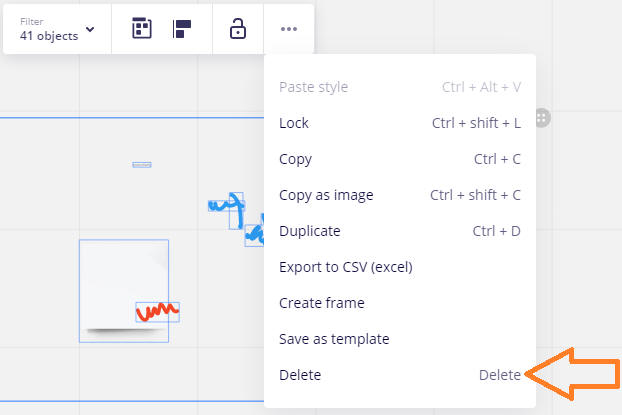
Press over "...".
The following menu becomes available. Choose "Delete".
The right most circle represents you. The other circles are your team members.

The person with the flash owns the board:

If your text is too small, as shown here, you need to zoom in.

Use the mouse wheel to zoom in and out. The zoom happens around the mouse pointer so make sure you point it to the object you want to keep in view.
If you need to move around, use the right mouse button to shift left and right.
Once you have zoomed in, click over the text object. If the text size is large enough to be shown, then you know you zoomed in sufficiently.

Only one user should use the feature during the session, not both.
The moment the second user uses the feature as well, it goes wrong.
Follow the steps in the screenshot in the order given.
Select the export icon from the top left and make your selection from there.

Miro exports are not very good in the free version and there can't be too many boards either.
You can try to duplicate the board into a view only board which won't be editable in the future but allows you to keep a copy.
Notice that only the latest 3 boards are editable in the free version of Miro.
Back to How to...