(Back to How to...)
This shows how to share files via Google Drive.
For ex. the file is a PDF of homework downloaded from D2L.
|
Step 1 |
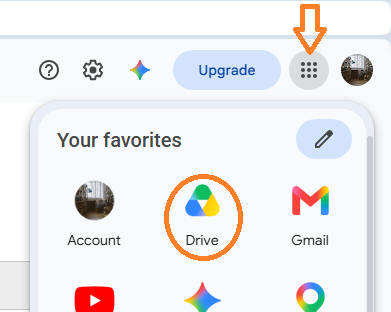
Log into your google account Choose the google drive icon
|
|
|
Step 2 |
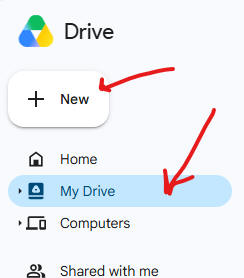
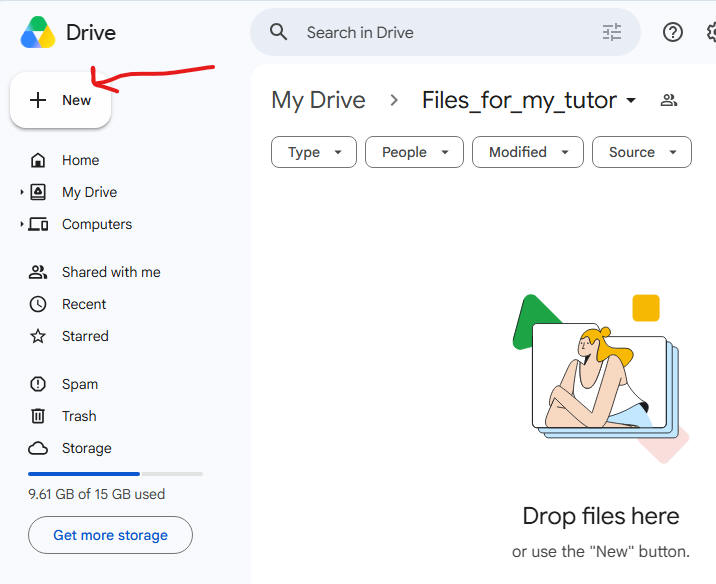
Click on your "My Drive" folder then press the "New" button.
Select "New Folder", then type a folder name, for ex. call it Files_for_my_tutor. Next push the "Create" button.
|
|
|
Step 3 |
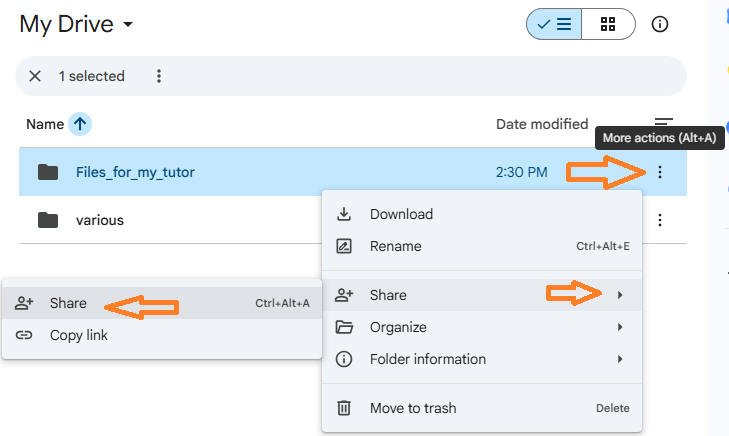
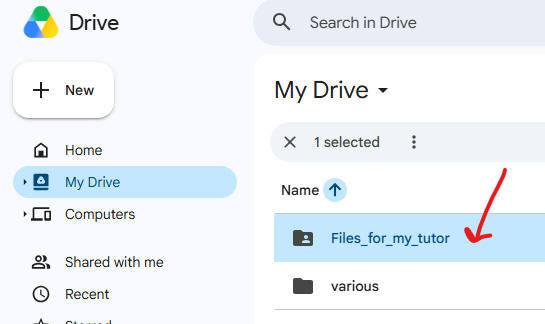
Select as shown to share this new folder:
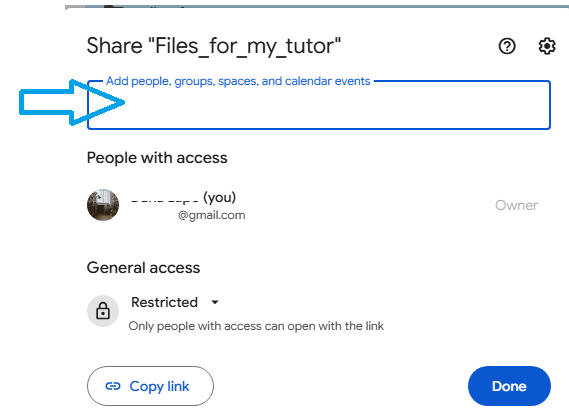
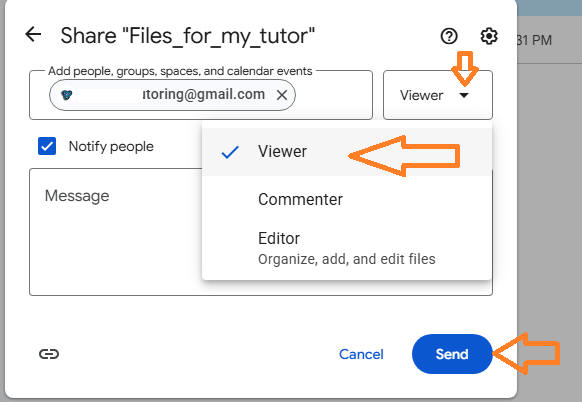
Then type your tutor's email address in the box as shown, when you complete the email address correctly, the address shows up in a dropdown, select the email from there. The dialog box you are in, automatically changes as shown in the next step.
|
|
|
Step 4 |
Use the dropdown to select "Viewer" then press "Send". If you want the tutor to drop files in this folder, not just read them, then you select "Editor" instead. Push the "Send" button when done.
You only needed to complete this once.
|
|
|
Step 5 |
Upload a homework file. You may want to create new inner folders here to keep organized, example names of folders would be math30_homework, or chem_lectures. You can drag files from one folder to the other using your mouse.
Double click on the folder name to open it.
Press the "New" button
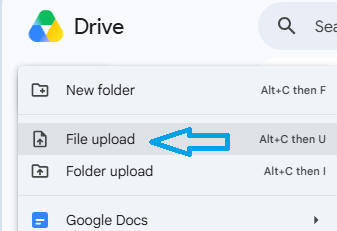
Select the "File upload" entry
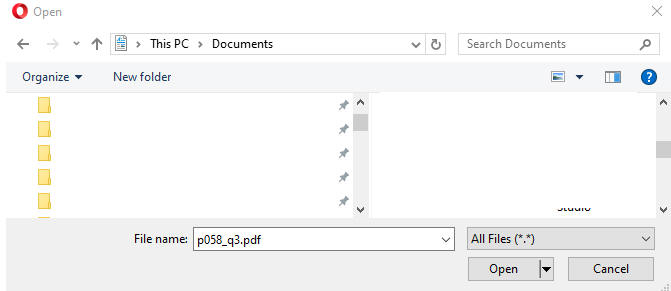
Navigate to your file, select it, then press the "Open" button
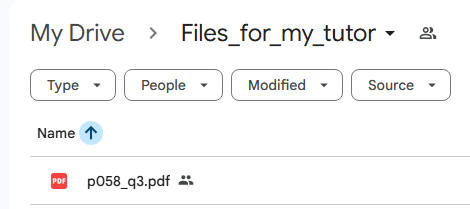
You will see your uploaded file in the said folder, and any other files you drop in this folder will be visible to your tutor.
|
|
|
Back to How to... |